




How to Find and Resolve Flagged Duplicate Expenses
How to find and resolve flagged duplicate expenses
Expensify automatically detects potential duplicate expenses by comparing key details across your expenses, such as the amount, currency, and date. When a potential duplicate is detected, the expense is placed on hold and marked with a Fix badge.
You can locate and resolve these duplicates directly from the report or chat where the expense lives.
Note: Duplicate detection is available on Collect and Control plans only.
If you have two expenses that were not automatically flagged but should be combined, you can learn how to merge them manually.
Who Can Use Duplicate Detection
Duplicate detection is available to all members on Collect and Control plans. Both submitters and approvers can resolve flagged duplicates on Draft and Outstanding reports.
How Expensify identifies potential duplicate expenses
Expensify compares the amount, currency, and date of your expenses to identify potential duplicates. When an expense has a scanned receipt, Expensify also compares additional details when they are available, such as the merchant, the order or invoice number, the last 4 digits of the card used, and the merchant’s zip code.
Using these additional details helps reduce false positives, so two separate purchases made at the same merchant on the same day are less likely to be flagged incorrectly.
Hotel and invoice expenses are matched using a date range instead of a single date:
- For hotels, Expensify can match an expense using the reservation check-in date, the check-out date, or the transaction date, since hotels are often paid at check-in or check-out.
- For invoices, Expensify can match an expense up to the invoice due date, since invoices can be paid any time before they are due.
How automatic duplicate review works
After an expense is flagged as a Potential duplicate, Expensify may automatically review it in the background to confirm whether the expenses are the same purchase.
- If Expensify determines the expenses are clearly not duplicates, the violation is automatically dismissed and you’ll see a note that Concierge resolved the duplicate, along with an Explain link describing why.
- If Expensify is not confident the expenses are different, the Potential duplicate flag remains so you can resolve it manually.
You can always resolve duplicates manually, whether or not they were reviewed automatically.
How to find duplicate expenses using the Fix badge
- In the navigation tabs (on the left on web, at the bottom on mobile), select Inbox.
- Look for chats with a Fix badge.
- Click the chat to open it and review the flagged expense.
A Fix badge means the report or chat contains a violation that needs your attention.
Within the report, duplicate expenses will show the label Potential duplicate. This indicates the expense has been flagged as a possible duplicate.
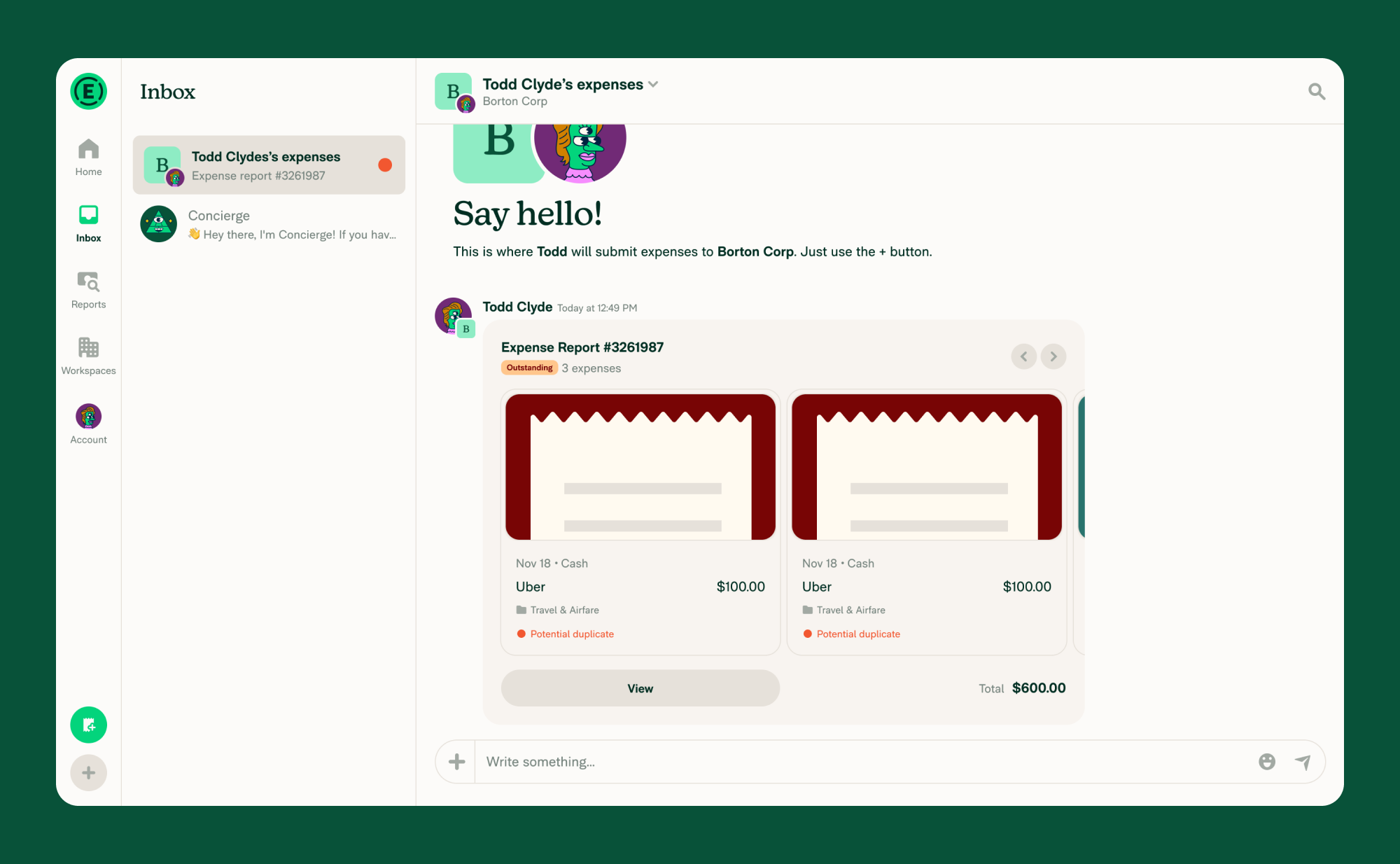
How to resolve a flagged duplicate expense
- Open the report or chat with the Fix badge.
- Click the expense labeled Potential duplicate.
- Click Review duplicates.
- Review the list of matched expenses flagged as duplicates.
- Select the expense you want to keep using the radio button next to it.
- Choose how to proceed:
- Keep all retains all matched expenses and removes the hold.
- Keep selected keeps the selected expense and discards the duplicates.
- If there are differences between the expenses (such as categories or tags), choose which values to keep.
- Click Confirm to save your selection and remove the hold on your expense.
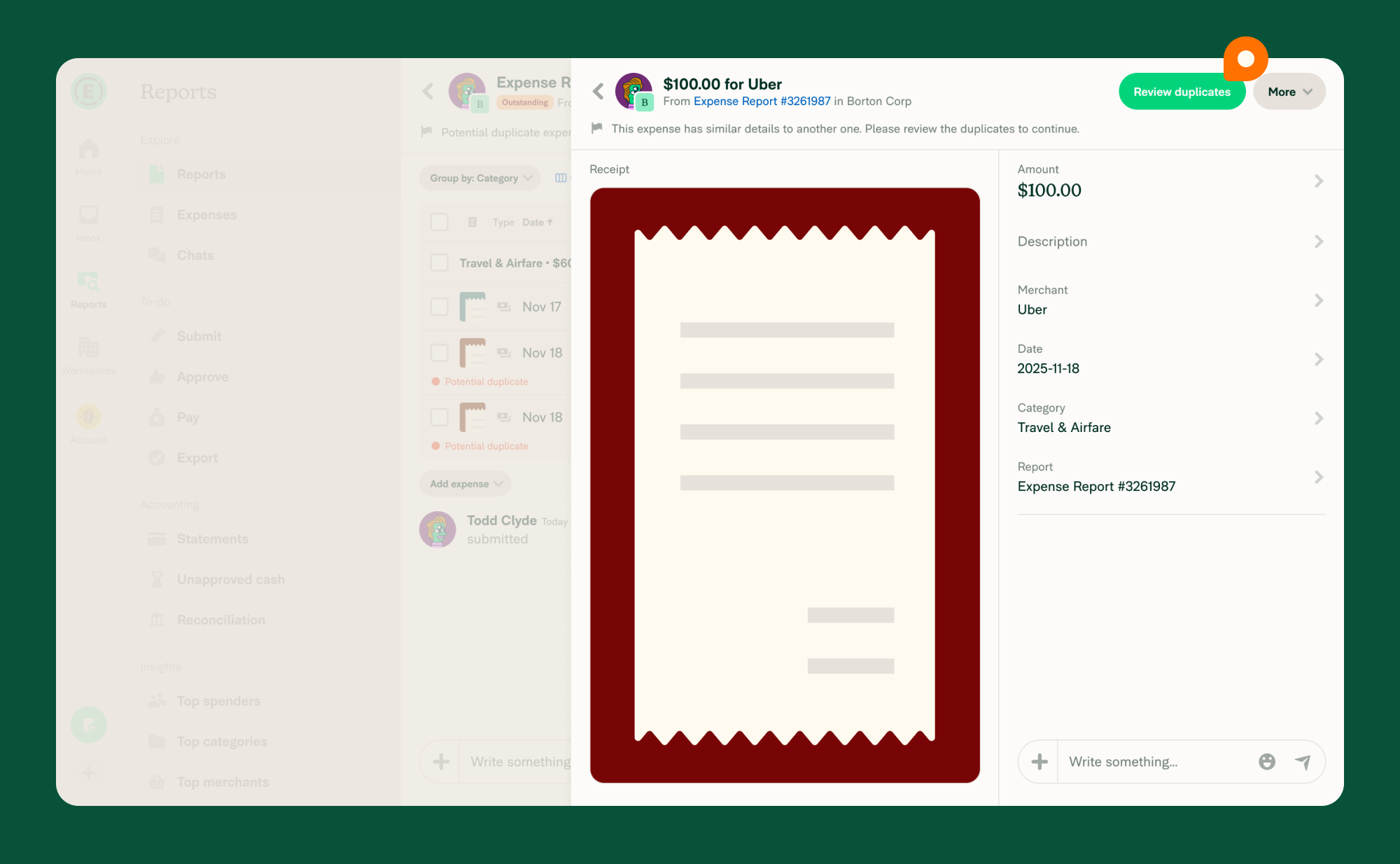
What happens after you resolve a flagged duplicate
The hold is removed from the expense. Depending on your choice:
- If you selected Keep all, all matched expenses remain on the report as separate entries.
- If you selected Keep selected, the selected expense is kept and the duplicates are discarded.
FAQ
Can I edit a duplicate expense after resolving it?
Yes, you can edit a duplicate expense as long as it is in the Unreported, Draft or Outstanding state.
Will two SmartScanned receipts from the same day with the same amount be flagged?
Often, but not always. Expensify also compares additional receipt details, such as the merchant, order number, card last 4, and zip code, so two separate purchases with different details may not be flagged. Expenses are also not flagged when:
- The expenses were split from a single expense.
- They were imported from a credit card.
- They came from matching email receipts with different timestamps.
Why was a duplicate warning removed automatically?
Expensify may automatically review flagged duplicates in the background. If it determines the expenses are clearly not the same purchase, it dismisses the violation and adds a note that Concierge resolved the duplicate, with an Explain link describing why. If Expensify is not confident, the flag stays so you can resolve it manually.


